



Unhide can be downloaded from the following url: http://www.bleepingcomputer.com/download/unhide/
A screen shot of one of the programs in this family is:
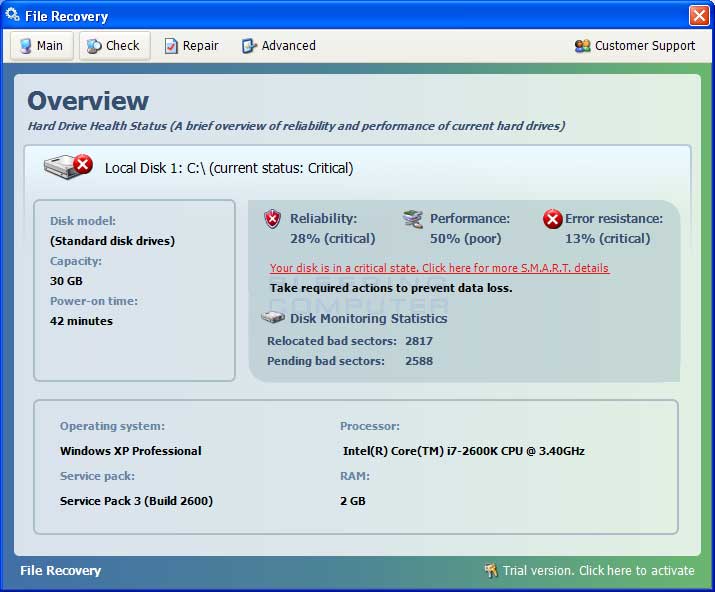
As part of the infection process, this family of rogues will change the attributes of all the files on your computer's fixed hard disks so that they are hidden (+H). It will then change your Windows configuration to make it so that you do not see hidden files or hidden system files. By doing this, the rogue attempts to make you think that all of your files have been deleted in the hopes that this will trick you into purchasing the program in order to recover your files.
This infection will also delete shortcuts in various folders on your computer so that you can no longer find them pinned to the taskbar, in the quick launch, or in your Start Menu. When the infection deletes the shortcuts it will store a backup copy of them in the folder %Temp%\smtmp. Using this backup, we can then restore the files to their proper location so you can find them once again under your Start Menu and in other locations. It is very important, though, that if you are infected with this family of infections that you do not delete any of the files in your %Temp% folder and that you do not run any temp file cleaners as they will delete this backup folder. With this folder removed, we will not be able to restore the shortcuts back to their proper location.
Unhide.exe is used to automatically revert these changes on your computer. When run, it will unhide (-H) all +H files on the fixed disks of your computer. It will not, though, unhide any files that also have the +S attribute. Unhide will also automatically detect if the %Temp%\smtmp folder exists, and if it does, it will copy them back to their proper locations for you. If your shortcuts are missing due to this infection and you have already cleaned out your Temp folder, then you can use the scripts at the bottom of this post to restore your default Start Menu.
Unhide will also reset certain Registry settings that this infection changes to hide your shortcuts and start menu items. When Unhide is running, if it detects any changes in these Registry settings it will reset them to the Windows default and display a messaging that it has done so.
When Unhide is complete, it will create a logfile on the Windows Desktop called Unhide.txt.
Below are the folders found under %Temp%\smtmp that this infection moves your Start Menu Shortcuts. The list below also tells you the corresponding locations the shortcuts should normally reside in based on the version of Windows you are using.
%Temp%\smtmp\1:
Windows XP: C:\Documents and Settings\All Users\Start Menu
Windows Vista and Windows 7: C:\ProgramData\Microsoft\Windows\Start Menu
%Temp%\smtmp\2\:
Windows XP: C:\Documents and Settings\<your login name here>\Application Data\Microsoft\Internet Explorer\Quick Launch\
Windows Vista and Windows 7: C:\Users\<your login name here>\AppData\Roaming\Microsoft\Internet Explorer\Quick Launch\
%Temp%\smtmp\3\:
Windows XP: Does not exist in XP. Therefore do not be concerned if %Temp%\smtmp\3 does not exist on Windows XP.
Windows Vista and Windows 7: C:\Users\<your login name here>\AppData\Roaming\Microsoft\Internet Explorer\Quick Launch\User Pinned\TaskBar
%Temp%\smtmp\4\:
Windows XP: C:\Documents and Settings\All Users\Desktop
Windows Vista and Windows 7: C:\Users\Public\Desktop
To manually restore your shortcuts, simply open up each of the %Temp%\smtmp\ folders that you have on your machine and copy everything found there into the respective folder listed above.
For example, if you are running Windows XP, then you would copy all everything located in %Temp%\smtmp\1 to C:\Documents and Settings\All Users\Start Menu. If you are using Windows Vista or 7, you would copy everything from %Temp%\smtmp\1 to C:\ProgramData\Microsoft\Windows\Start Menu.
In order to see some of these locations you need to change your Windows settings so that show hidden files and show system protected files are enabled. Information on how to do this can be found in this tutorial. When done, you can change those settings back to their previous settings.
How to show hidden files in Windows
Update: 11/14/2011
For those of you who no longer have the %Temp%\Smtmp folder, you will not be able to use Unhide to restore your Start Menu items. With this in mind, I have created some scripts to restore the default Start Menu for specific versions of Windows that I have access to. You can view the available versions below. I will be adding more as time goes on.
Windows 2000 US English
http://download.bleepingcomputer.com/grinler/fakehdd/win-2000-sm-reset.exe
Windows XP Pro 32-bit US English - This should also work in other 32 bit version of Windows XP but I have nothing to compare against.
http://download.bleepingcomputer.com/grinler/fakehdd/winxp-pro-32bit-sm-reset.exe
Windows Vista 32-bit US English
http://download.bleepingcomputer.com/grinler/fakehdd/vista-32-sm-reset.exe
Windows Vista 64-bit US English
http://download.bleepingcomputer.com/grinler/fakehdd/vista-64-sm-reset.exe
Windows 7 32-bit US English
http://download.bleepingcomputer.com/grinler/fakehdd/win7-32-sm-reset.exe
Windows 7 64-bit US English
http://download.bleepingcomputer.com/grinler/fakehdd/win7-x64-sm-reset.exe
Thanks to tetonbob and Andrew for supplying me with the required start menus.
Update: 04/03/2012
Unhide was updated to include certain Start Menu options that were being hidden on the start menu. Unhide will now restore those settings back to Windows defaults and then restart Explorer.exe so that the changes go into effect.
These start menu items that are now made visible include:
- Documents
- Pictures
- User Profile
- Music
- Games
- Control Panel
- Videos
- Default Programs
Update: 04/04/2012
Unhide will now process removable drives, such as USB drives, by default.
Update: 04/12/2012
Unhide now has the -f option that will force it to run on Windows versions that I have marked as not compatible. These versions of Windows are ones that I was unable to test the program on. Therefore, the use of this option is done so at your own risk.
Please let us know if you have any questions.
Edited by Grinler, 23 July 2012 - 10:03 AM.
Added info about new version
 Back to top


