


Lot's of reports are coming in that Windows 10 users are finding that their audio is no longer working on their computer after installing the latest Windows updates.
Windows Updates have become a complete mess lately, with the latest October 2018 Update deleting user's files, Patch Tuesday updates causing crashes because of incompatible keyboard drivers, and now users are finding that their audio drivers are broken.
While there has been no word about this from Microsoft, numerous users are posting on Reddit, the Microsoft forums, and Twitter about their audio no longer working after installing this week's Patch Tuesday updates. Windows 10 just states "No Audio Device is installed".

I got 3 HP Omen Laptops today that lose sound after the windows update. The driver desapear and OS don't detect any sound devices.
— Rick (@Bold_Rick) October 12, 2018
@Windows Installed a new update last night and now I have “no audio output device” installed HELP!! It was working fine before the update last night and I need to get this problem sorted ASAP as I’m in uni and need to watch/listen to recorded lectures to revise!!! pic.twitter.com/d5d6kYGf62
— Megan Evans (@regally_evil) October 12, 2018
Users have tweeted to the Microsoft Twitter account about this problem and they have responded that they are investigating the matter.
According to the reports, this is not an isolated issue and is affecting computer using Realtek, Intel, and other audio drivers. Thankfully, users have come up with a solution on their own, which is described below.
How to fix broken audio in Windows 10
Below are two methods that can be used to try and resolve the audio issue. The first method is one provided by a Microsoft employee and the second is one provided by a user on Reddit that others had said worked.
Method 1:
A Microsoft employee stated that Microsoft had pushed out an incorrect audio driver for a short period of time and that it was causing the audio problems people are having. He suggested that you follow these steps to resolve the problem:
An Intel audio driver was incorrectly pushed to devices via Windows Update for a short period of time earlier this week. After receiving reports from users that their audio no longer works, we immediately removed it and started investigating. If your audio broke recently, and you're running Windows 10 version 1803 or above, please check to see if the incorrect driver was installed. To regain audio, we recommend you uninstall the driver.
- Type Device Manager in the search box
- Find and expand Sound, video, and game controllers
- Look for a Realtek device, or a device that has a yellow triangle with an exclamation point
- Click on the device to select it
- From the View menu, choose Devices by connection
- Look at the parent device - this will be called something like "Intel SST Audio Controller" (Intel Smart Sound Technology driver version 09.21.00.3755)
- Right-click the controller device
- Choose Properties
- You should get a dialog like below. Click on the Driver tab as shown.
- If the driver version is 9.21.0.3755, you have the driver that was sent to you incorrectly.
- Click Uninstall Device. You will get a popup asking if you want to remove the driver too, as shown.
- Check the checkbox as shown, so the driver will be removed.
- Click Uninstall.
- When the driver is uninstalled, reboot your system.
- Your audio (speakers and headphones) should now work.
Method 2:
In a Reddit comment, a user posted a solution that has been restoring the audio for numerous people who have tried.
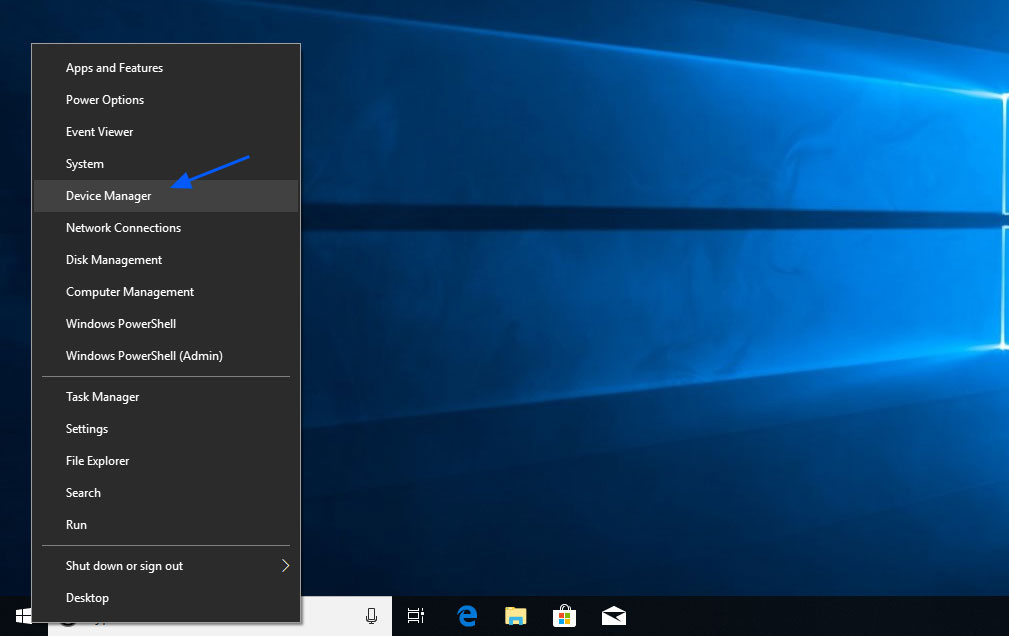
- Open the Windows 10 Device Manager by right-clicking the Start button and then selecting Device Manager as shown below.
- Scroll down and expand the section called Sound, video and game controllers.
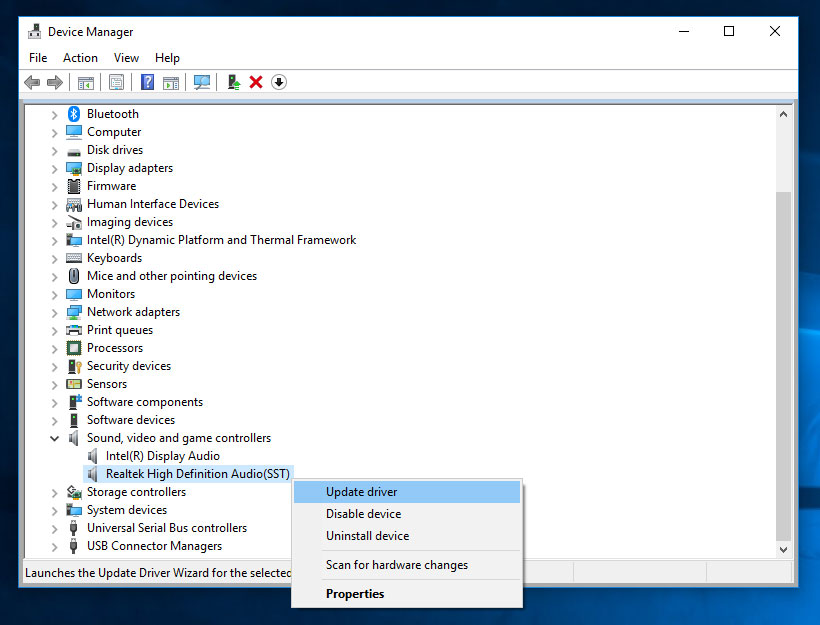
- You should now see a list of audio devices. Look for a device that has SST as part of the name, right-click on it, and select Update Driver as shown below. For example on my computer it was called Realtek High Definition Audio(SST). Others have seen Intel Smart Sound Technology driver (SST).

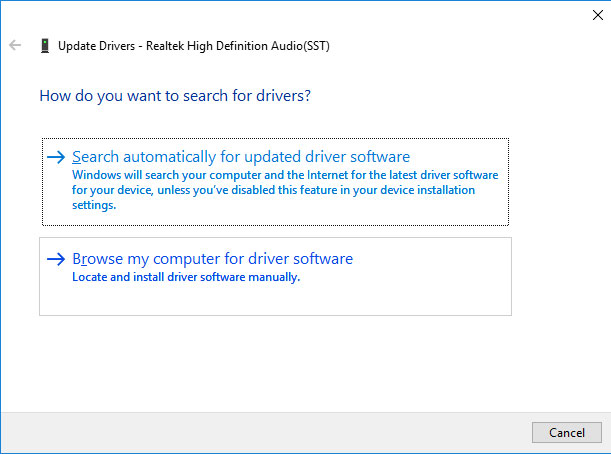
- A window will open asking if you want to search or browse for a driver. Click on the Browse my computer for driver software.
- At the next screen, click on the Next button.
- Then select High Definition Audio and click Next.
- Your audio should be now be working in Windows 10.
If this does not work, please let us know and we will investigate further.
Updated 10/13/18 12:07 AM EST: Updated to include a method suggested by a Microsoft employee.

Break down IAM silos like Bitpanda, KnowBe4, and PathAI
Broken IAM isn't just an IT problem - the impact ripples across your whole business.
This practical guide covers why traditional IAM practices fail to keep up with modern demands, examples of what "good" IAM looks like, and a simple checklist for building a scalable strategy.






Comments
CosmasAay - 7 years ago
Hi Lawrence, thanks for sharing.
In my device manager, there is only "Intel(R) Display Audio" and no "Realtek High Definition Audio(SST)"
I have uninstall device for "Intel(R) Display Audio", do scan for hardware changes, and restart my computer; but the issue is not solved.
Please help me on my problem. Thanks.
chethan93 - 7 years ago
Hello,
Access device manager>>system devices
Right click on Intel(R) Smart Sound Technology(Intel(R) SST) Audio Controller, select properties, driver tab and roll back driver
Icefy - 7 years ago
I can't roll back the driver
chethan93 - 7 years ago
Try updating. Either should work
Peregrine Logix - 7 years ago
Rolling back the driver worked for me, the other two solutions didn't work for me.
Lawrence Abrams - 7 years ago
Added a new method suggested by a Microsoft employee.
CosmasAay - 7 years ago
Hi Lawrence, thanks for adding new method. That fix my problem. Once again thanks.
Hrdcpy - 7 years ago
Hey guys, new to the site but not new to this problem. My audio devices disappeared after the Spring update. Manually reinstalling the update from iso bootable-USB drive was the only fix.
In order to download the iso directly from M$ (legally) using a PC you must change your browsers "appearance" to Safari/OSX in Chrome's developer tools. Else, the update site will attempt to install/not reinstall from within the browser.
In addition to no audio devices, I was unable to login to services using my Live account (e.g. Microsoft Store).
RobRoy2350 - 7 years ago
My systray speaker icon broke after the update.This worked for me (although may be temporary - haven't rebooted):
Open Windows Task Manager
Look for Windows Explorer
Right click
"Restart"
whatsurpassword - 7 years ago
Oh Microsoft, this is a rookie mistake. That's why we call them Windows Crash Dates right? I mean, really the people at Microsoft that have allowed this to happen should come to work tomorrow, finding a box on their desks.
cpunoob - 7 years ago
my sound came back,
but its not as loud as it use to be, on the same volume setting as before?
lost it and got it back today, thanks to u guys.
ill wait a few days to see if anything changes, before i start a topic.
stubing - 7 years ago
Hi
Hopefully there will be another solution, I've tried both solutions above with no success.
How can I regain sound ?
thanks
gmpenner - 7 years ago
I have been having a similar issue with Dell Optiplex 9010 and 9020. From what I see the Windows Audio Service stops and restarting the service fixes the problem temporarily. It may work for the next 4 or 5 reboots but then the service stops and no sound. The problem first came up when we did and manual update from Windows 10 1607 to 1803 but if I reimaged that station to 1803 it was fine up until a couple weeks ago. I have tried using the latest drivers from Dell, which are from 2015, and I have let Microsoft search for and install new drivers but get the same results every time. The worst part of this is that I have labs full of these models and have not been able to find a permanent fix. If anyone has any advice I'd sure appreciate it.